 04/20/2026
Claude has a setting most people never touch. This one fixes the em dash problem permanently.
If you use Claude regularly for writing, you have probably noticed the em dash habit. It shows up everywhere. Responses that should read clean and professional end up looking fragmented, as if the writing keeps interrupting itself. Most people just edit them out manually, one response at a time. There is a better way, and it takes about thirty seconds to set up.
In This Article
Key Takeaways
- Claude’s User Preferences setting lets you define persistent behavior instructions that apply across every conversation without repeating them each time.
- A single preference prompt eliminates em dashes from Claude’s output permanently and replaces them with cleaner alternatives: commas, periods, semicolons, parentheses, and colons.
- The setup takes thirty seconds. The result is writing that reads as polished and professional rather than fragmented and choppy.
Why Em Dashes Are a Problem in AI-Generated Writing
The em dash is not grammatically wrong. Used occasionally in the right context, it works fine. The problem is that Claude uses it as a default connector for almost everything, which means it shows up far too often to read naturally. When every transition and aside gets an em dash, the rhythm of the writing breaks down. Sentences that should flow smoothly get interrupted constantly. Content that should sound authoritative ends up reading like someone who cannot decide whether to end the sentence or keep going.
For business writing, marketing copy, client-facing documents, or anything representing a brand, that pattern is a real problem. Editing it out manually every time is both tedious and inconsistent, since it is easy to miss a few. The better solution is preventing them from appearing in the first place.
What Claude Defaults to Without Instruction
Claude, by default, reaches for the em dash whenever it needs to add supplementary information mid-sentence, connect two related thoughts, or create emphasis. Those are all legitimate writing needs. Every one of them has a cleaner alternative: a comma for brief additions, a period to separate complete thoughts, a semicolon to connect related clauses, parentheses for supplementary context, or a colon to introduce a list or explanation. The preference setting simply redirects Claude to use those alternatives instead of defaulting to the em dash every time.
The Fix: Claude’s User Preferences Setting
Claude has a User Preferences field that most users never configure. It is not hidden, but it is easy to overlook because it sits quietly in the account settings rather than appearing in any active prompt or conversation. Instructions placed here apply persistently across every conversation, which means you set it once and it works everywhere without any ongoing prompt management.
Here is how to access it. Click the profile initial in the bottom left corner of the Claude interface. Look for the section labeled something like “What personal preferences should Claude consider in responses?” or a similar prompt field in the profile or settings area. That is where the fix goes.
Why This Approach Works Better Than Per-Conversation Instructions
Adding style instructions to every single conversation prompt is the approach most users take, and it works until you forget to include it. The User Preferences setting is persistent by design. Claude reads it as standing context for every conversation, which means the em dash restriction is active even when you are asking a quick question, generating a short piece of content, or starting a conversation without a detailed system prompt. One setup, permanent effect.
The Exact Prompt to Use
Copy the following into the preferences field and save. Claude will apply it to every response going forward.
Do not use em dashes (—) in your responses. When you would normally use an em dash, please use one of these alternatives instead:
– Commas for brief interruptions or additional information
– Periods to separate complete thoughts into distinct sentences
– Semicolons to connect related independent clauses
– Parentheses for supplementary information
– Colons to introduce explanations or lists
That is the entire setup. Save the preference and Claude will stop using em dashes across all of your conversations immediately. The writing output shifts from fragmented to flowing, and the manual editing step disappears entirely.
If you use Claude for any volume of professional writing, this is one of the highest-return thirty-second investments you can make in the consistency and quality of your output.
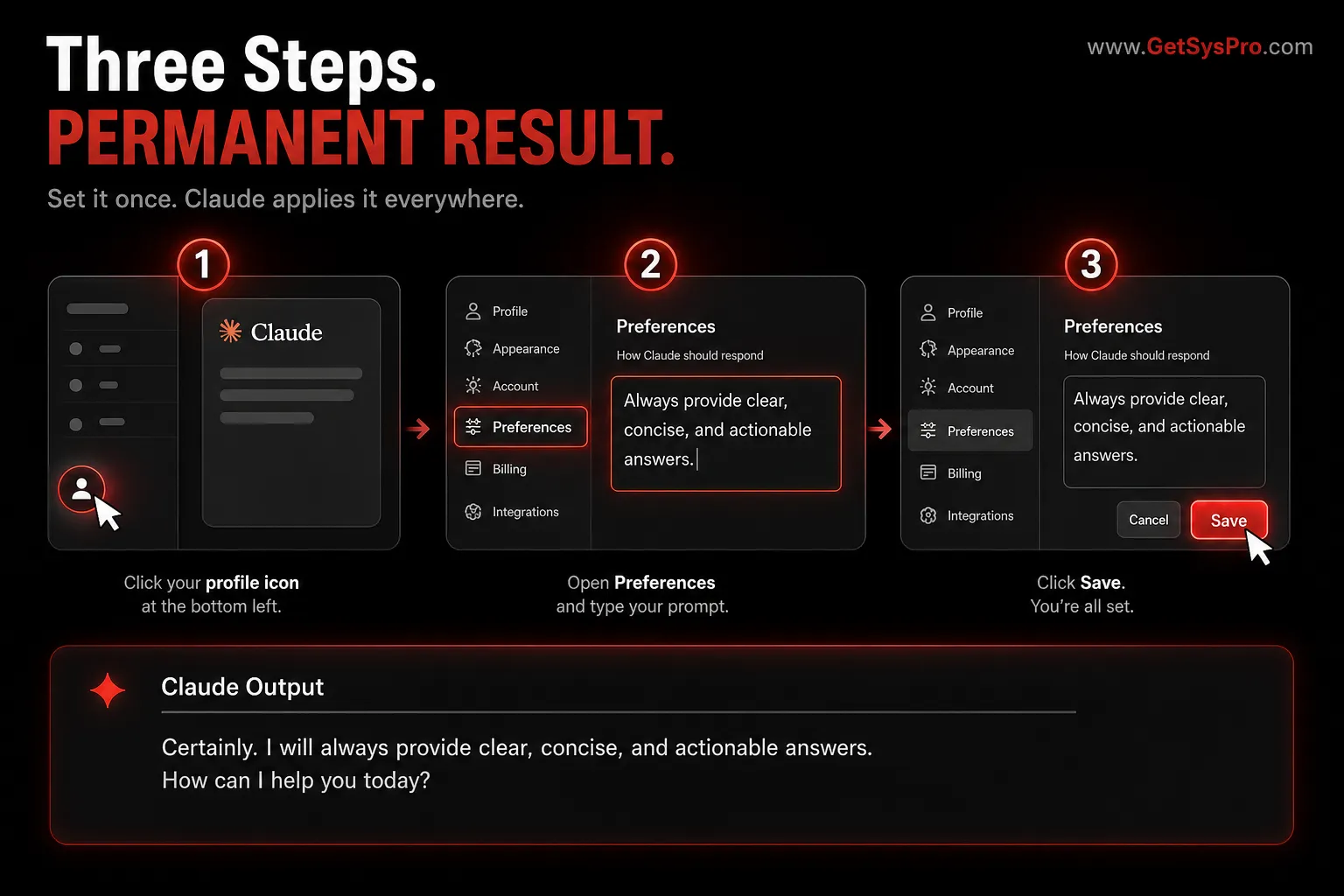
Three steps. Thirty seconds. Claude stops using em dashes in every conversation permanently. www.GetSysPro.com
Building Systems That Make Your Tools Work Better
GetSysPro designs the operational frameworks, documentation standards, and workflow systems that make consistent professional output possible at scale.